The Recap Editor lets you edit particular Timekeepers based on their summarized hours and fee amounts, or particular expenses based on their summarized amounts.
Changes made in the Recap Editor cascade to all related fee and expense items.
-
Open the prebill on which you need to edit or add a fee or expense item.
- Select Billing.
- Click the Edit Prebill icon in the right pane.
- Click on the Prebill # of the prebill you need to edit to select it.
-
Select Form > Open from the menu.
The Billing\Edit Prebill \[prebill number] window opens.
-
Select Tools > Recap Editor from the menu.
A Prebill Recap Editor window opens, that is specific to how the client is being billed on the prebill (by Fee or by Expense).
-
Follow the steps below that correspond with the action you need to take.
To change the hours or amount for a Fee recap:
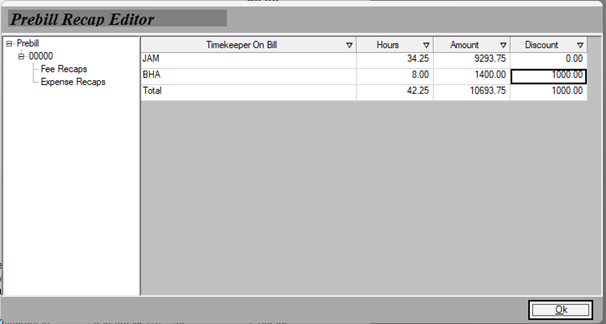
- Click in the Hours or Amount cell of the row that you want to recap and change the value.
- Repeat step a for each Timekeeper for whom you need to change the hours or amount.
-
You can set specific discount amounts to Timekeepers. This functionality will not work if:
-The bill is a consolidation.
-The matter is set to % of Total
-The discount amount entered on the main prebill screen is greater than the fees billed amount.
Your changes are applied and you are returned to the Billing\Edit Prebills\Prebill #window.
To change the units or amount for an Expense recap:
- Click in the Units or Amount cell of the row that you want to recap, and change the value.
- Repeat step a for each expense code you need to change.
-
Click OK when finished.
Your changes are applied and you are returned to the Billing\Edit Prebills\Prebill #window.
- Select Form > Save from the menu to save your changes.